LegalWriter
(Deprecated)
Introduction
This powerhouse command found in MapWorks permits you to create highly customizable Legal Descriptions directly from CAD geometry inside AutoCAD, BricsCAD, or IntelliCAD. This legal writer contains a fully featured word processor, or you can export the description to Microsoft Word in a single click. Work with geometry, either using a single polyline, a collection of lines & arcs.
Instantly Visible Results: The main Legal Writer dialog is shown below. Immediately upon selecting objects, the results are shown to the right in our HTML compatible word processor.
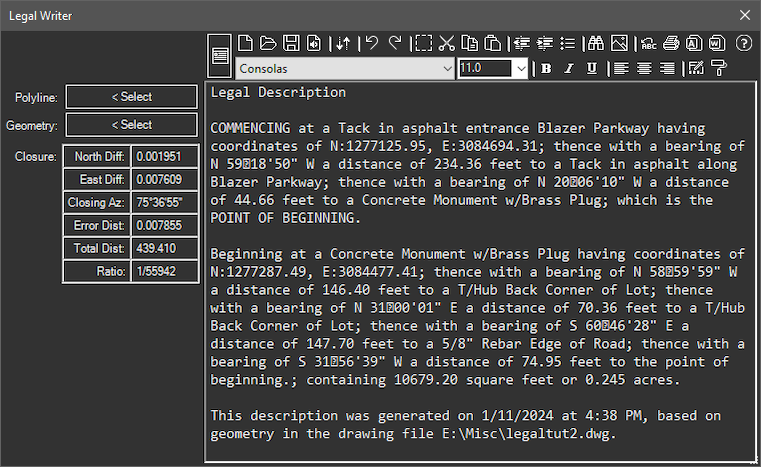
There are four main areas of this dialog, detailed below:
| Function | Description |
|---|---|
| Objects: | For quick legals, you can simply select a closed polyline or a collection of lines and arcs to form the boundary. |
| Results: | For those without a favorite word processor, a complete usable editor is built in.
|
| Output: | Export the results easily.
If you don't use Microsoft Word, you can simply click the [Select All] button, then the [Copy] button, and you're ready to paste into any Windows compatible word processor. |
| Closure: | This small box in the lower left of the dialog is potentially the most important. As each description is being generated, the calls created are collected to calculate closure. These calls are re-traversed, as if the calls were manually entered into a traverse routine to check closure. This can be an important aid in determining the quality of the results. |
Commencement Paths
When you need to describe how to get to the beginning of the description, you can choose a multi-segment polyline or a collection of lines and arcs. This reference path is processed in the same fashion as the boundary calls and the descriptive text placed above the boundary description.
Acquire Descriptions
When the Legal Description Writer dialog appears, it collects all the potential descriptions from the drawing. This includes text and mtext objects, along with description attributes from point blocks.
- CAD Text/Mtext
- Carlson (SurvCADD), Eagle Point, or Softdesk point blocks
- User blocks with DESC attributes.
You can set the description search radius. When the legal is being created, and it gets to the end of a line/curve segment, it looks through the potential description collection for the closest description found. If it's within the designated distance, it is placed in the body of the legal (using the [PntDesc] field).
Number Words
Instead of using digits for the results, you can choose to use number words. For example, instead of 123.34 you can have "one hundred twenty three point three four". This increases the longevity of your legals, ensuring that 8 never starts looking like 3 after copies and faxes.
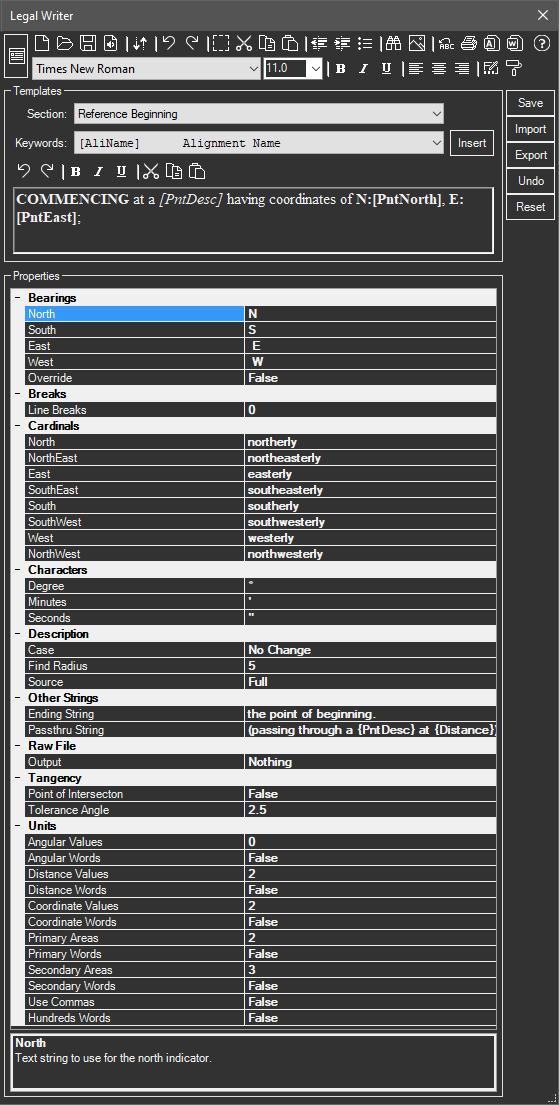
Take for example, the curve segment template string in the dialog above. The user can change the wording in any way. Whenever a calculated field is needed, you can either type it in or choose it from the keywords menu (which also contains brief descriptions). Each field (in brackets) gets replaced with the calculated value when each call is processed. A complete list of fields is shown below:
|
|
Cardinal Directions
The [CardMaj] keyword returns four increments being Northerly, Easterly, Southerly, or Westerly. The [CardMin] keyword will return these four as well as Northeasterly, Southeasterly, Southwesterly, and Northwesterly. The field [CardMin] is useful even in precision legals to describe the general direction a curve is heading. Cardinal options also exist for the concave direction of curves.
Other Settings
The configuration dialog also allows complete control over bearings, units, descriptions, etc.
| Function | Description |
|---|---|
| Bearings: | Use letters like "N" or complete words like "North" on listed bearings. |
| DMS Separators: | Use symbols like "°" or words like "Degrees." |
| Units Precision: | Control the precision of angles, distances, coordinates, and areas separately. Use number words (explained above) as well as a comma when distances exceed 1000. |
| Raw Data: | The program can collect the calls of the legal description and write them to a TDS RW5 file after processing. |
| Description: | Optionally change the case of found descriptions, and set the search radius to be considered found. |
| Paragraphs: | The text will flow the way you want. Values from 0 to 3 allows for continuous flow appropriate for word processors, through triple spaced. |
Reviews
Professional Surveyor, February 2005.
Note: As a deprecated product, technical support for previous versions of LegalWriter is still available but product improvements and bugfixes will only continue in Mapworks.
Documentation: Installs with the software and is available on-line.
Purchase: As part of C3DTools (MapWorks).
Product Support: Email Support Only: Contact us!
Upgrade Pricing: Contact us for discounted upgrade pricing.